Getting Started with SyncMyTrade
From zero to copying trades in under 5 minutes. No VPS, no software installs, no technical knowledge required.
Overview
SyncMyTrade is a cloud-based futures trade copier. You execute trades on one master account, and SyncMyTrade instantly replicates them across all your follower accounts — across multiple prop firms and brokers simultaneously.
Sign up & log in
Go to syncmytrade.com and create your account with your email or Google Sign-In. No credit card needed to start your 7-day free trial.
💡 Tip
Connect a broker account
When you first log in, the onboarding wizard guides you through setup. Click Connect Broker to start.
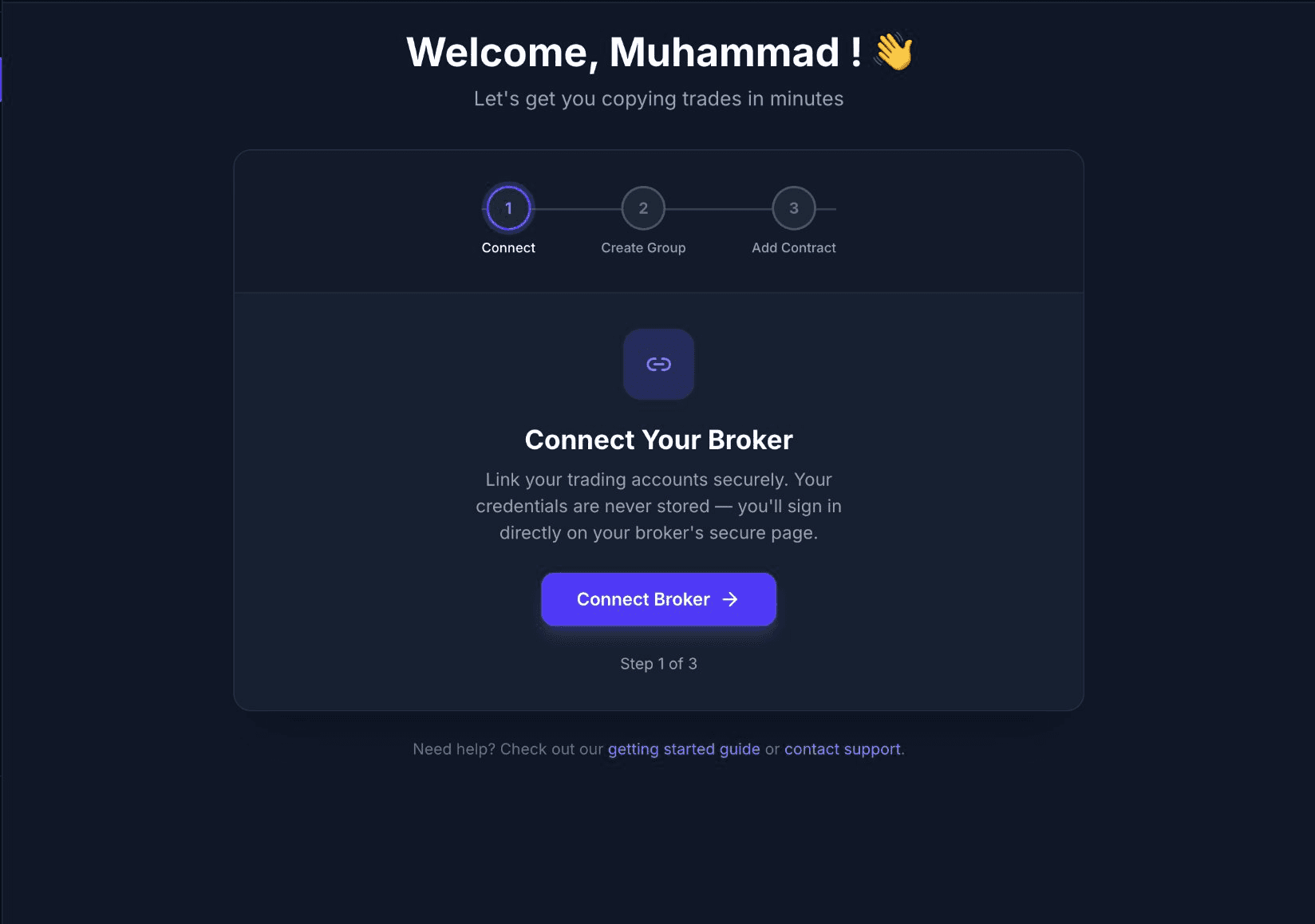
The onboarding wizard appears on your first login — Step 1 of 3
This opens the Connections page. Click + New Connection to add your first broker.
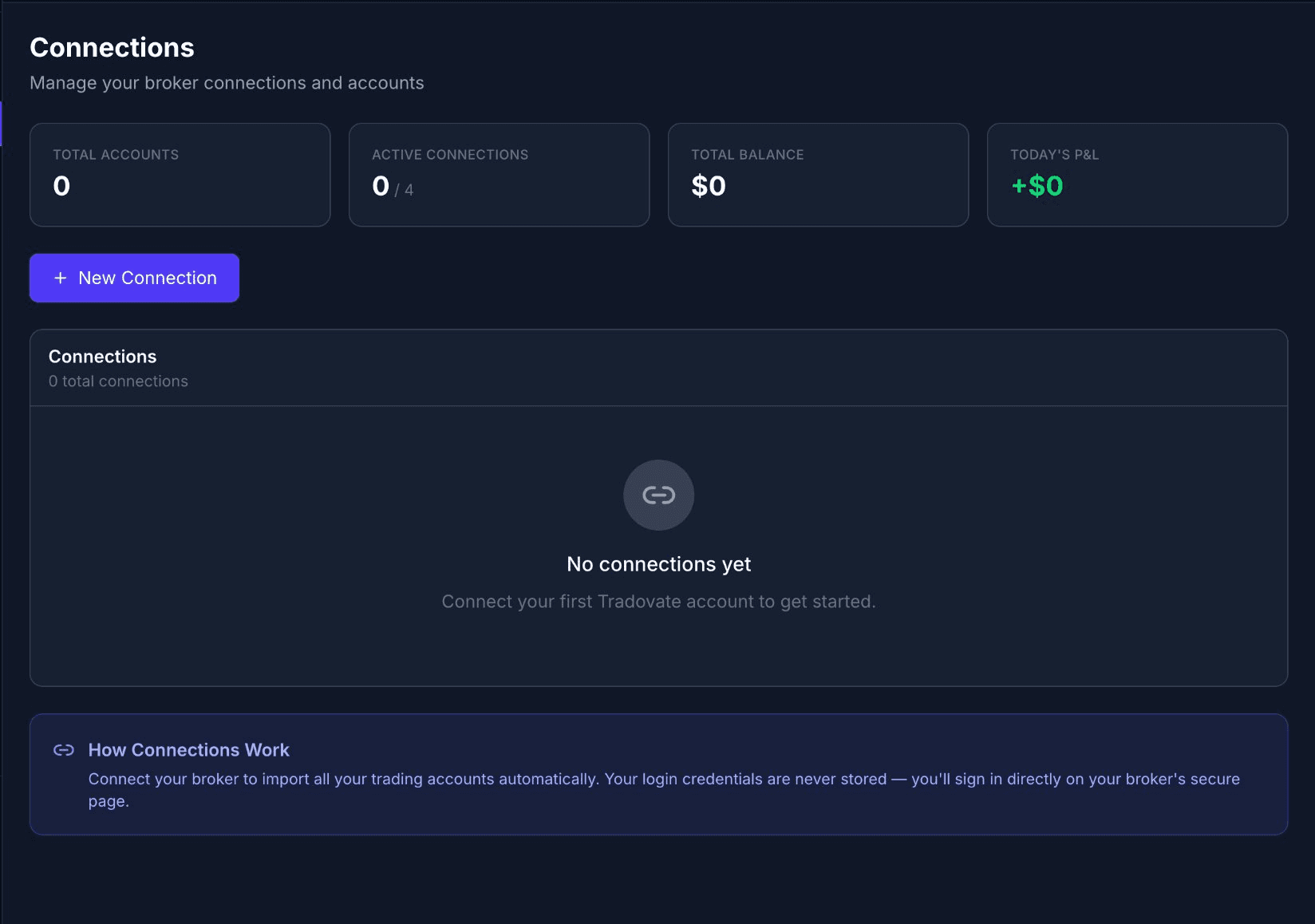
Connections page — click '+ New Connection' to get started
Give your connection a descriptive name — e.g. Apex Funded or My Tradovate Live. Note: this name cannot be changed later.
Select your broker: Tradovate, ProjectX (for TopstepX accounts), or Rithmic. Choose Demo for paper trading or Live for real money.
Click Connect Now — you'll be redirected to your broker's secure login page.
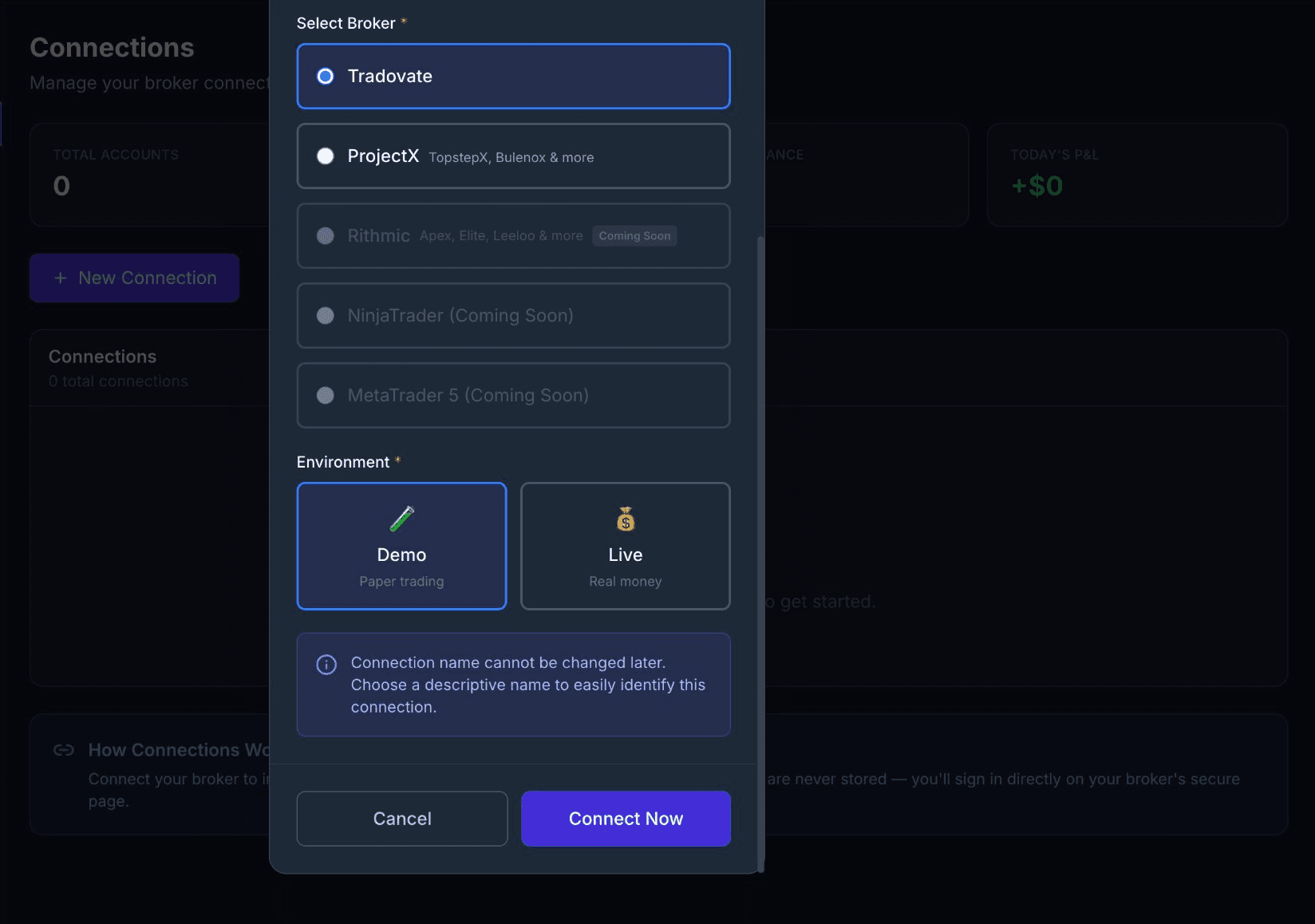
Select your broker, environment, then click Connect Now
With Tradovate you sign in on Tradovate's own OAuth page, so SyncMyTrade never sees or stores that password. ProjectX and Rithmic do not offer OAuth — those connections use an API key or broker credentials that you enter in SyncMyTrade and we store to keep the connection alive.
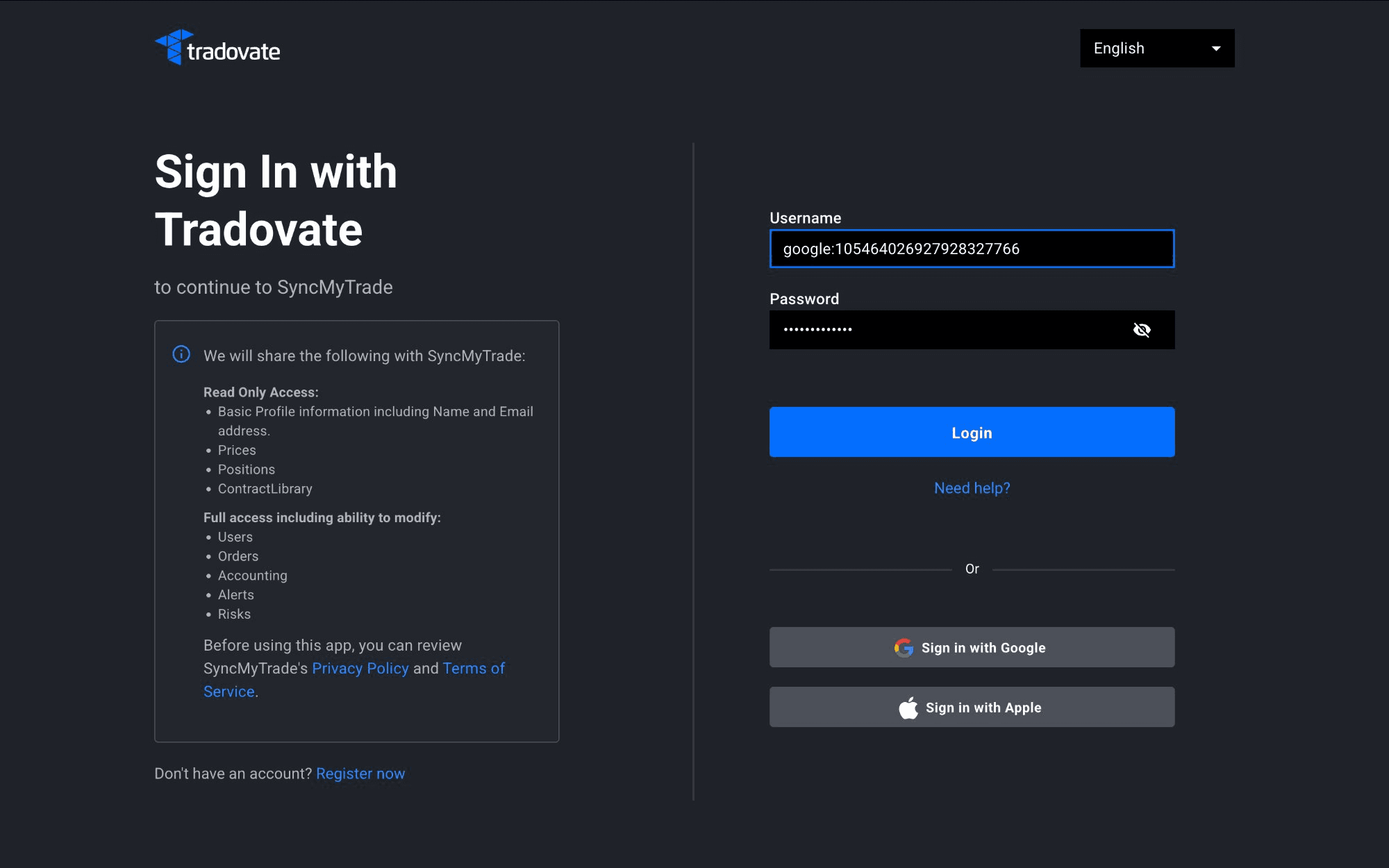
You'll sign in directly on your broker's secure page
ℹ️ Note
Create a copy group
A copy group links a leader account (the one you trade on) to one or more follower accounts that mirror it automatically. Go to the Groups page and click + Create Group.
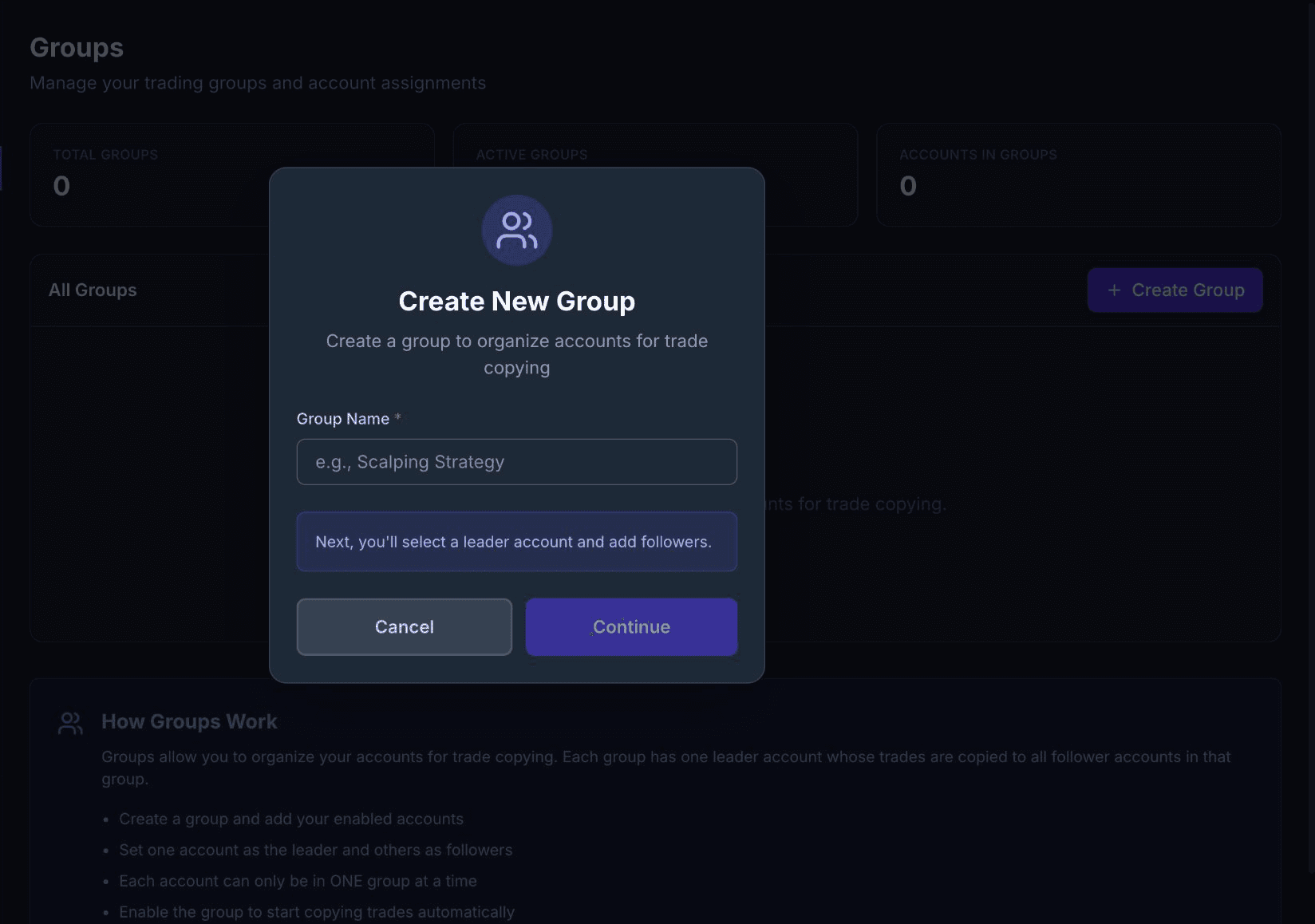
Enter a group name — e.g. 'ES Scalping' or 'Apex Accounts'
Enter a group name and click Continue.
Click Select Leader Account and choose the account you trade on.
Click + Add Followers and select the accounts that will copy trades.
When ready, click Create Group.
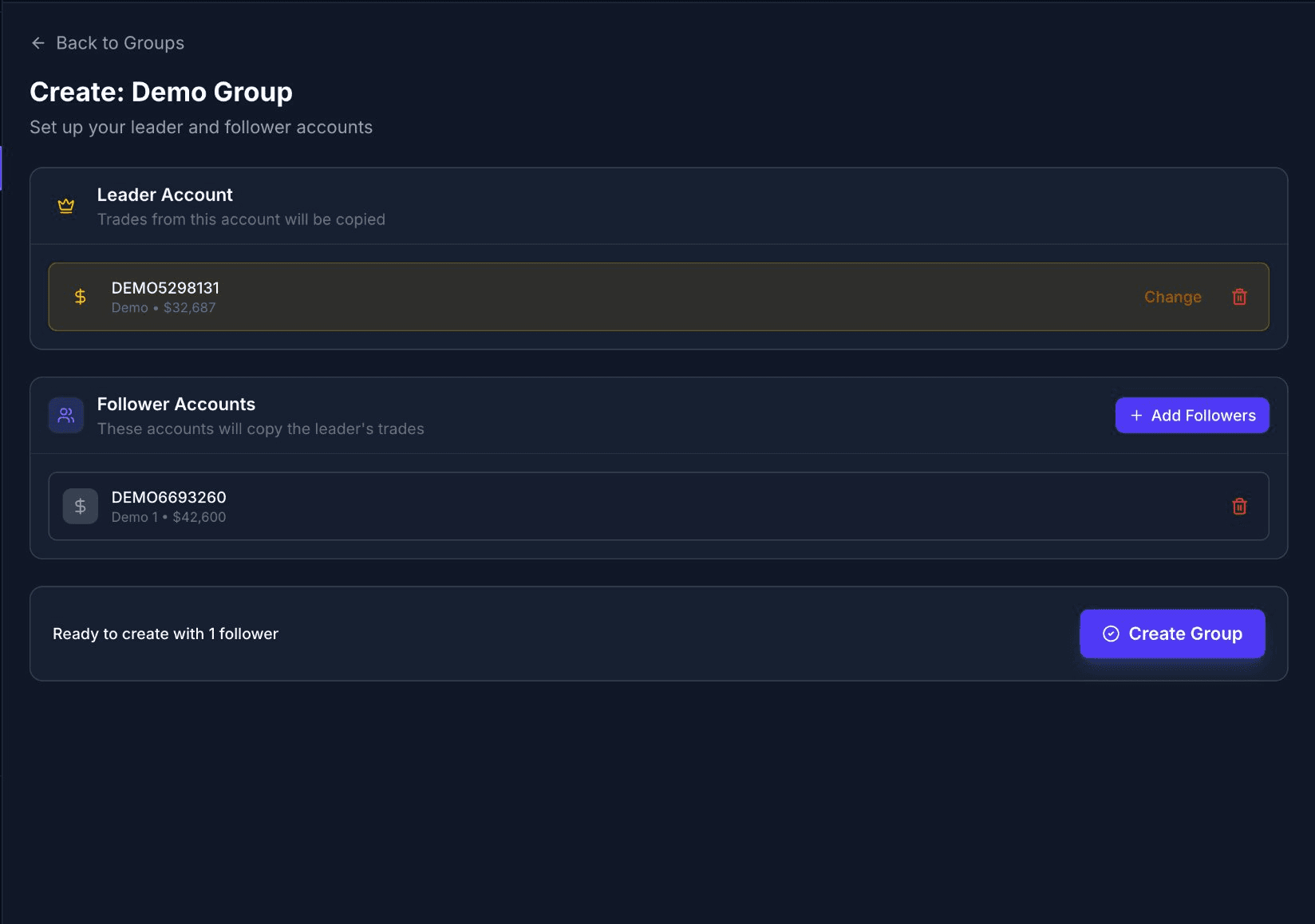
Leader and follower selected — click Create Group to finish
Your group will appear on the Groups page with Active status.
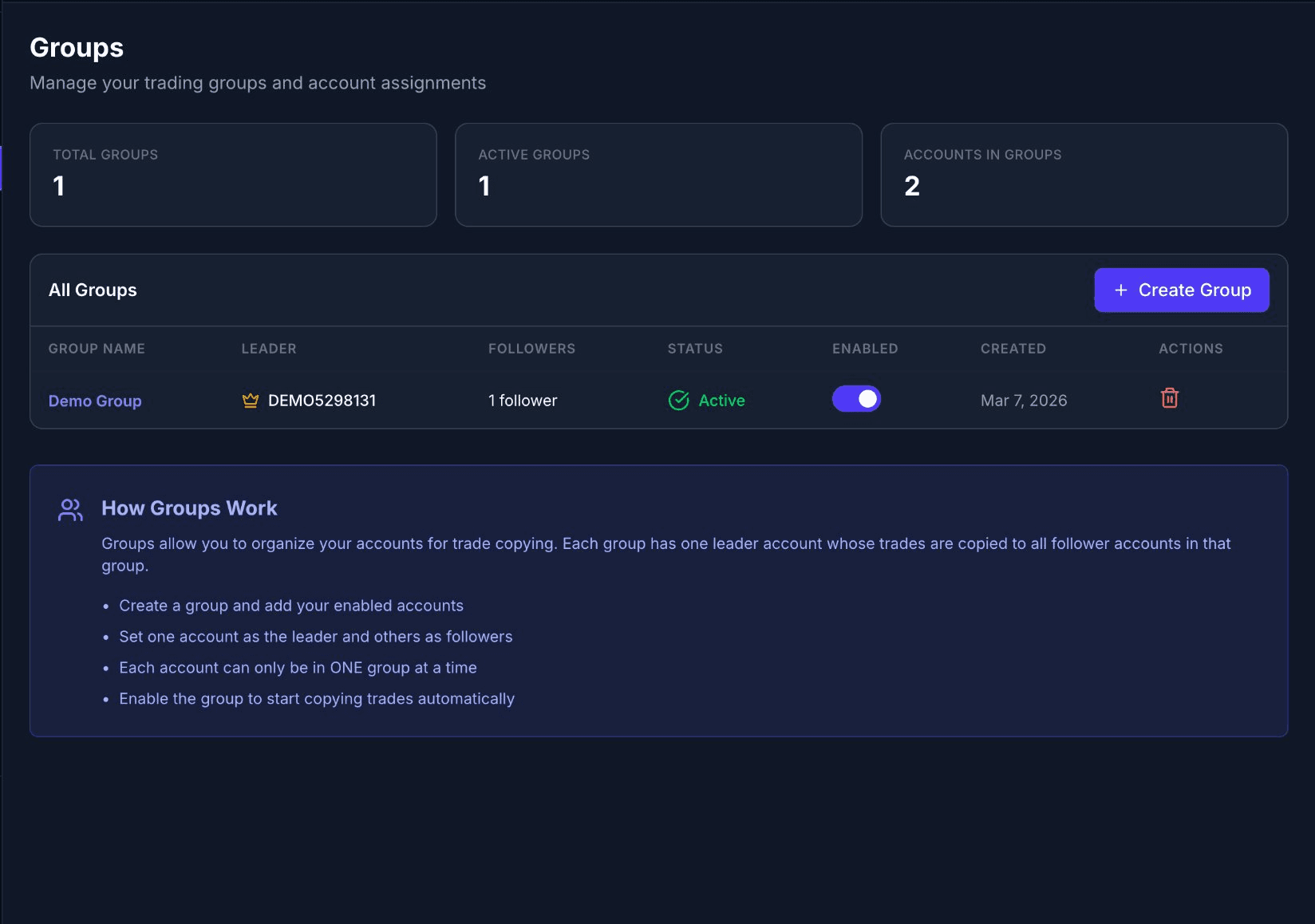
Your group is live and ready — status shows Active
💡 Tip
Add a contract
You need to tell SyncMyTrade which futures contracts to monitor and copy. Click Add Contract from the onboarding screen or the Dashboard.
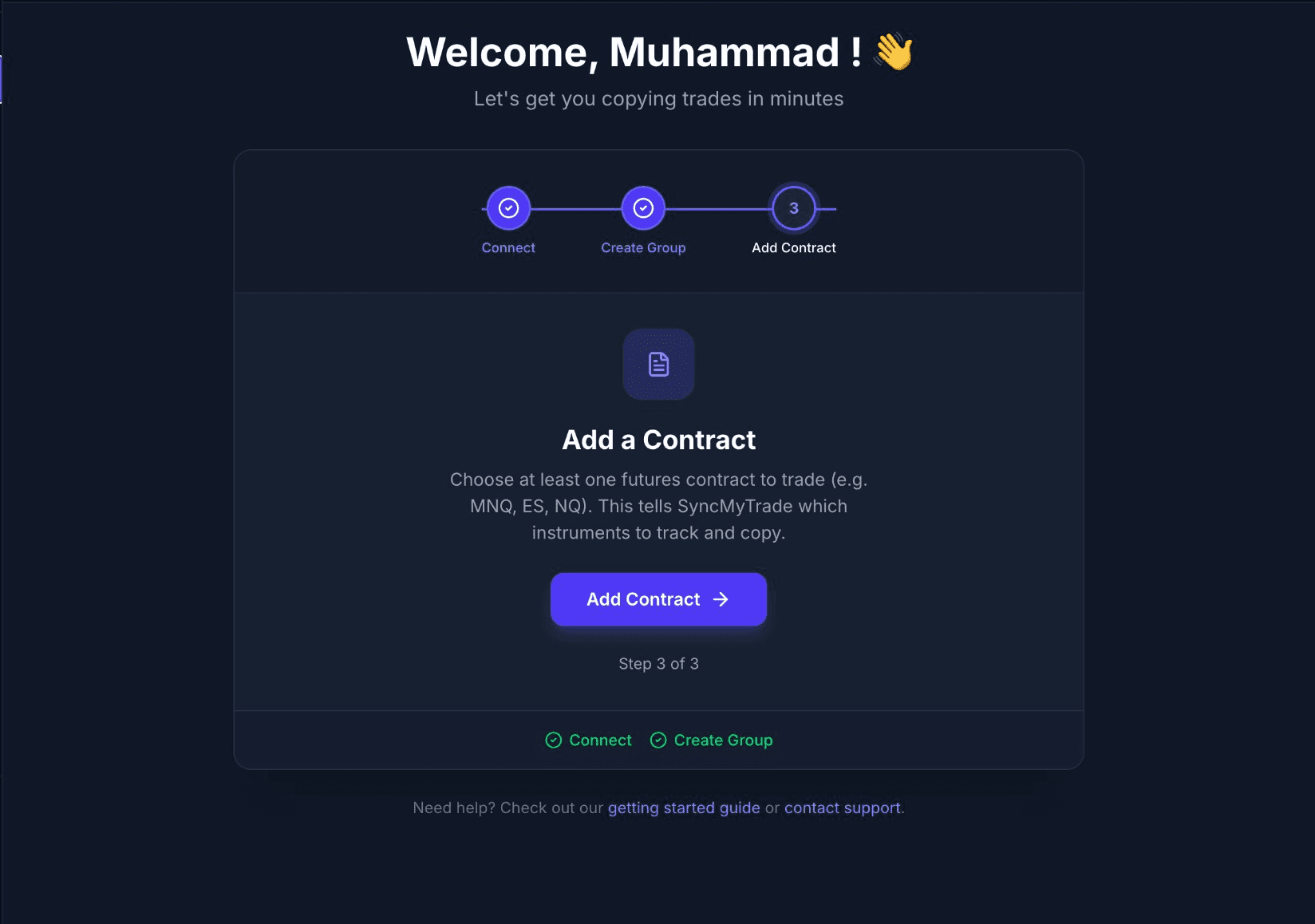
Step 3 of 3 — add at least one contract to start copying
Click Add Contract to open the contract search.
Type the contract symbol — e.g. ES for E-mini S&P 500, MNQ for Micro Nasdaq, NQ for E-mini Nasdaq.
Select the contract from the results and click Add.
ℹ️ Note
Start trading
Your dashboard now shows your group with all accounts synced and ready. Execute a trade on your leader account — SyncMyTrade copies it to all followers instantly.
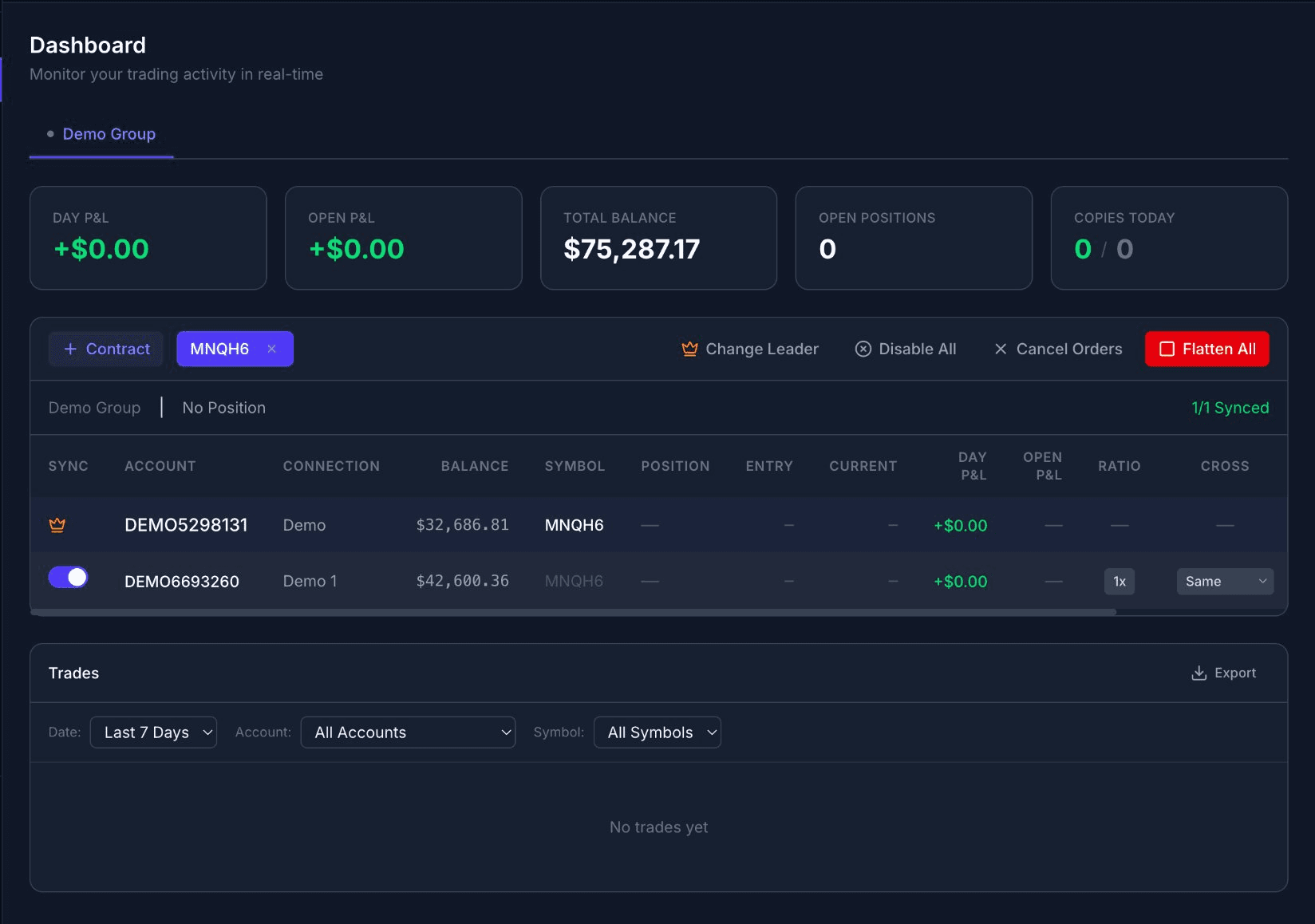
Dashboard with your group live — leader and follower accounts synced, ratio visible
⚠️ Important
Understanding copy ratios
The copy ratio controls how many contracts each follower trades relative to the leader. You can see and change this directly on the Dashboard next to each follower account.
💡 Tip
Next steps
Was this article helpful?