Brokers & Connections
How to connect Tradovate and ProjectX accounts, understand what a connection is, and fix issues when a connection goes offline.
What is a connection?
A connection represents one broker login credential linked to SyncMyTrade. When you connect, SyncMyTrade imports all the trading accounts associated with that login automatically.
ℹ️ Note
Connecting Tradovate Tradovate
Tradovate uses OAuth — you authorize SyncMyTrade directly on Tradovate's secure login page. Your password is never shared with us.
Go to the Connections page and click + New Connection.
Enter a connection name — e.g. Apex Funded or Tradovate Demo. This name cannot be changed later.
Select Tradovate as the broker and choose Demo or Live environment.
Click Connect Now — you'll be redirected to Tradovate's login page.
Sign in with your Tradovate credentials and approve the authorization.
You'll be redirected back to SyncMyTrade automatically. Your accounts will appear within a few seconds.
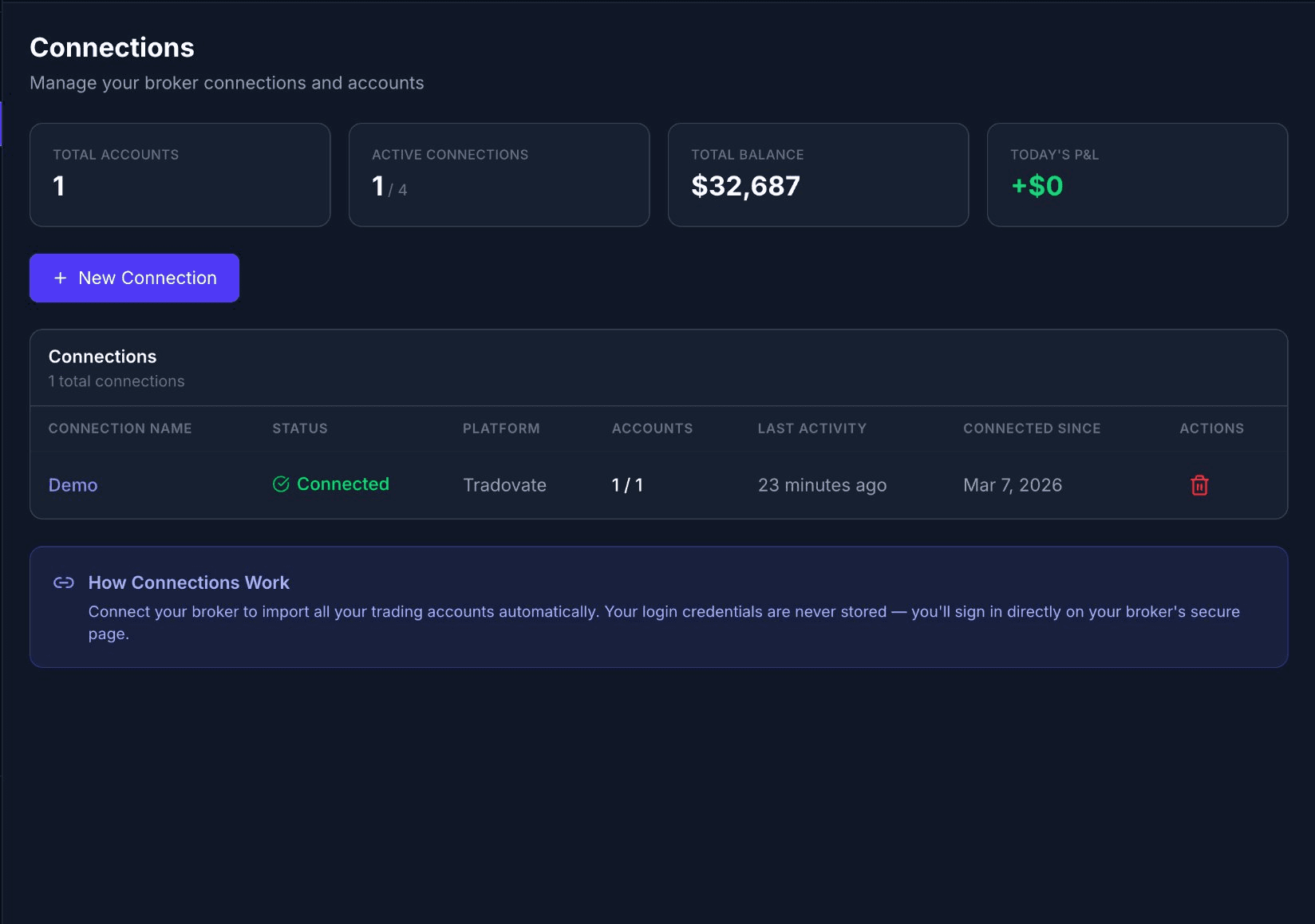
A successfully connected Tradovate connection showing Connected status
💡 Tip
Connecting ProjectX ProjectX
ProjectX is the platform behind TopstepX. ProjectX wound down its third-party platform offering through February 2026, so TopstepX is the prop firm you will connect on this type today. Instead of OAuth, ProjectX uses an API key which you copy from your TopstepX platform settings.
Go to Connections and click + New Connection.
Enter a connection name — e.g. TopStep Connection.
Select ProjectX as the broker.
Choose your Prop Firm from the dropdown — e.g. TopstepX.
Enter your Username (the email you use to log into your prop firm) and your API Key.
Click Connect Now. Your accounts will appear within a few seconds.
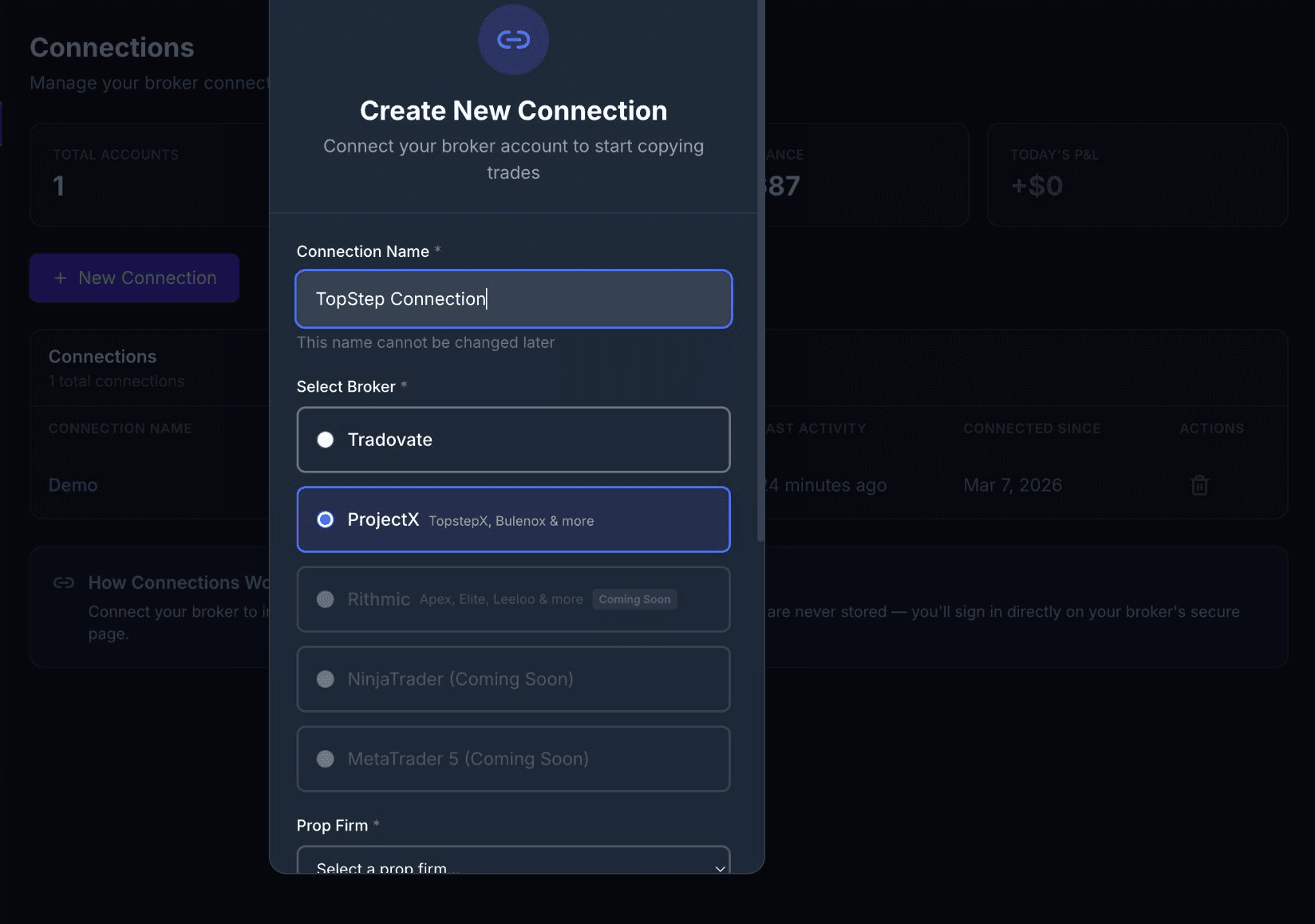
Select ProjectX and enter your connection name
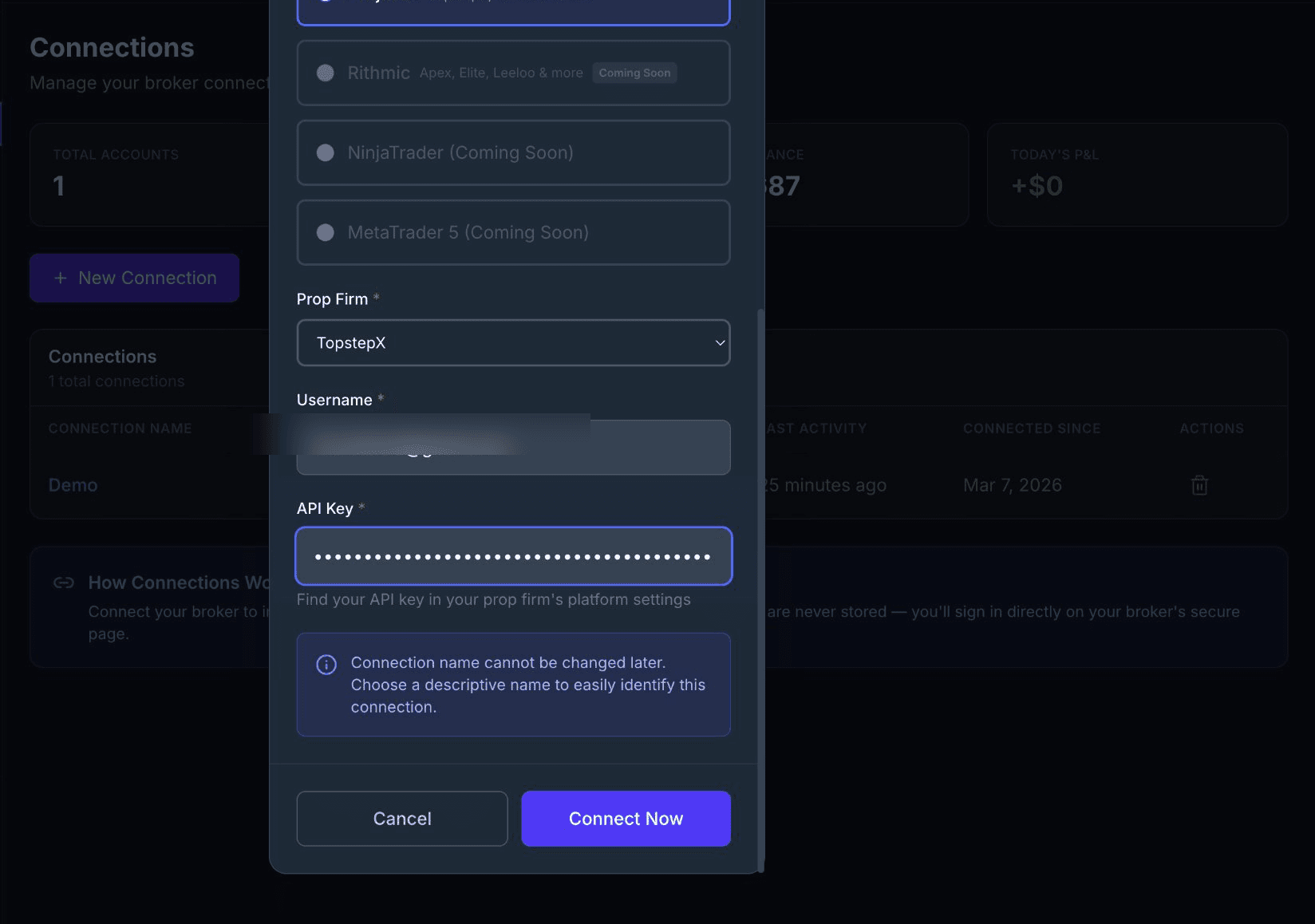
Select your prop firm, then enter your username and API key
💡 Tip
Viewing connection details
Click on any connection name to open its detail page. This shows all the trading accounts imported from that broker login, their balances, statuses, and which copy group they're assigned to.
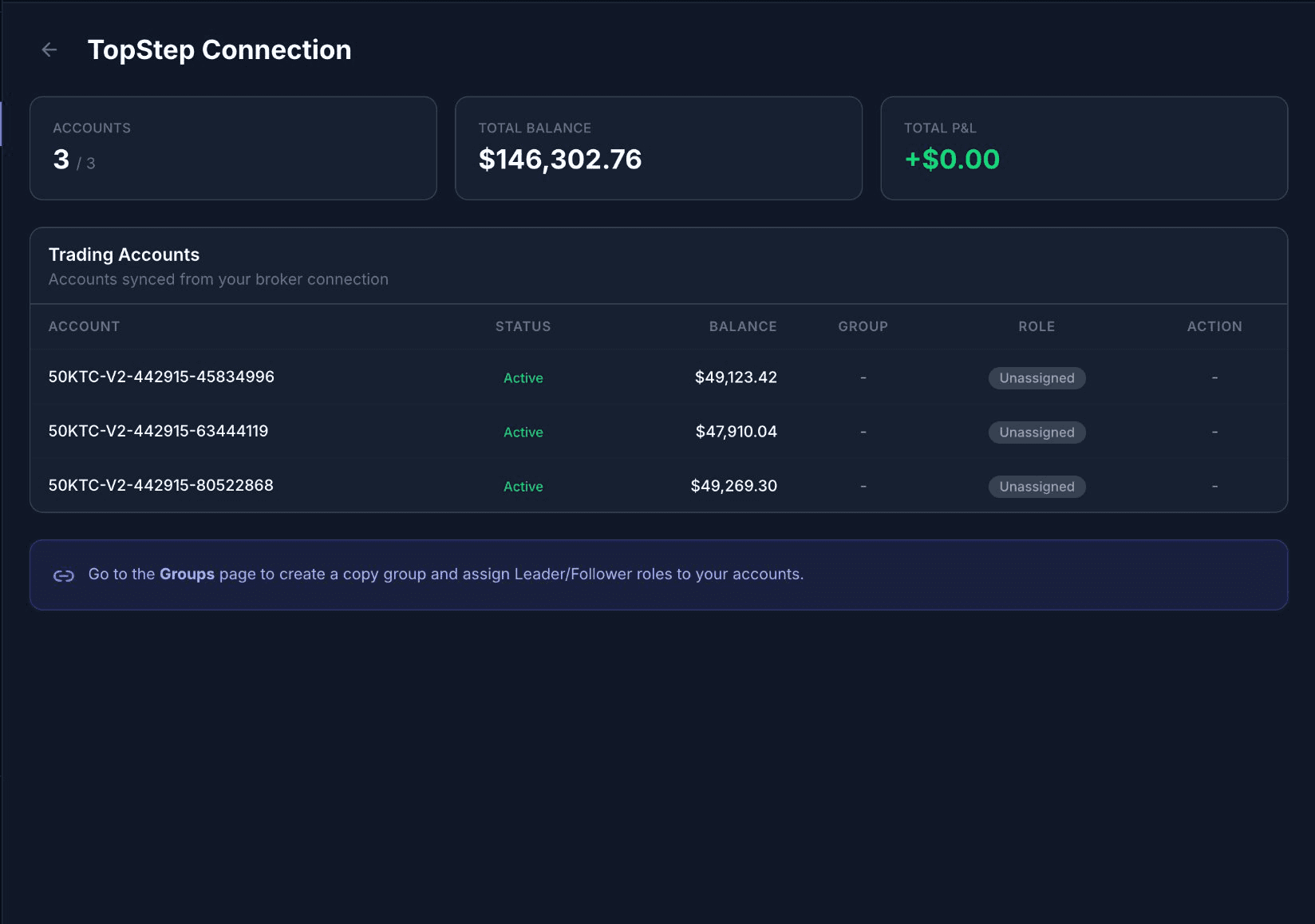
ProjectX connection detail — 3 accounts imported, all Active, not yet assigned to a group
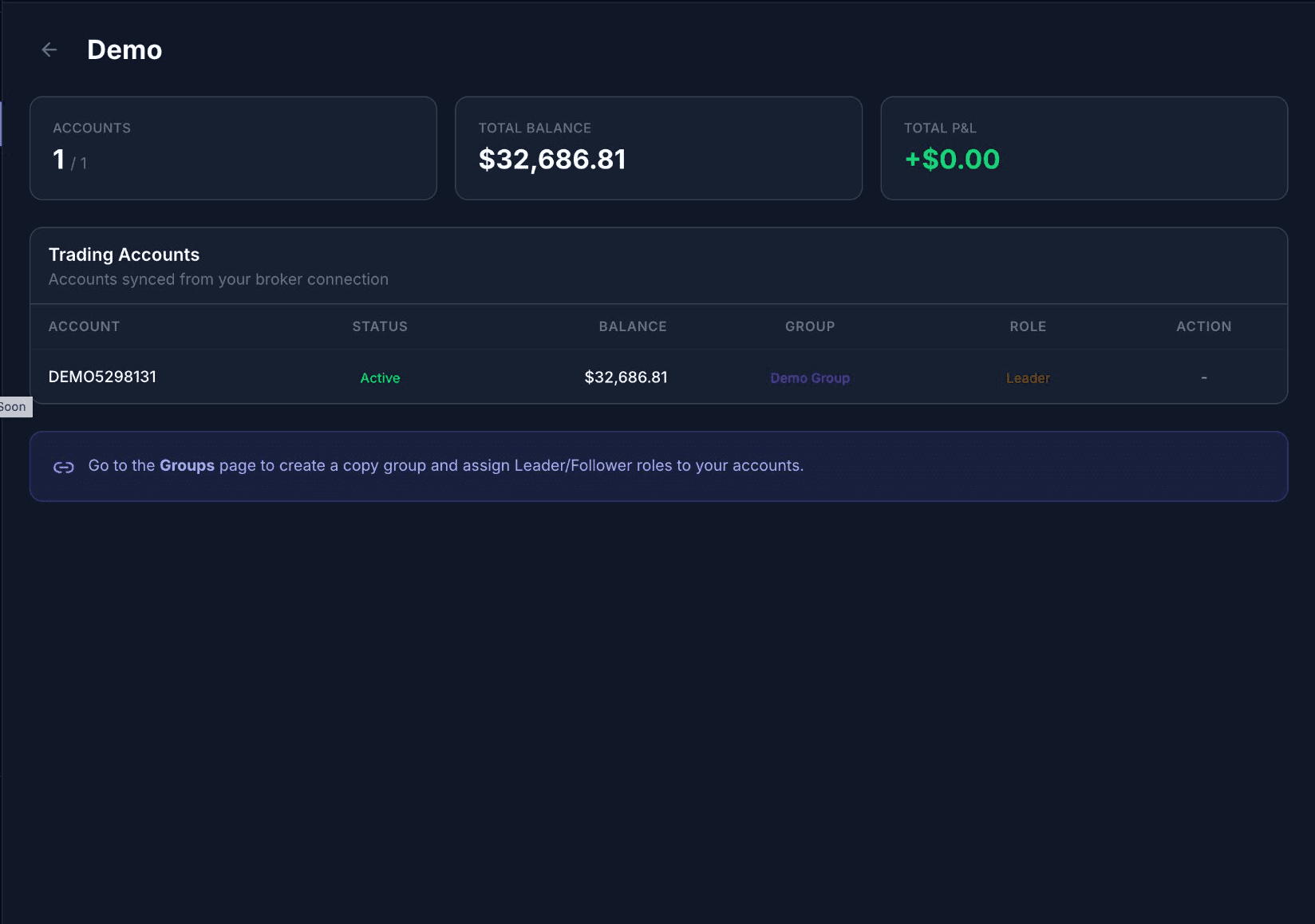
Tradovate connection detail — account assigned as Leader in Demo Group
The Role column shows whether the account is a Leader, Follower, or Unassigned — meaning it hasn't been added to any copy group yet.
Multiple connections
You can connect multiple brokers at the same time and mix them within the same copy group. A common setup is a Tradovate leader copying to ProjectX followers, or multiple ProjectX connections for different prop firms.
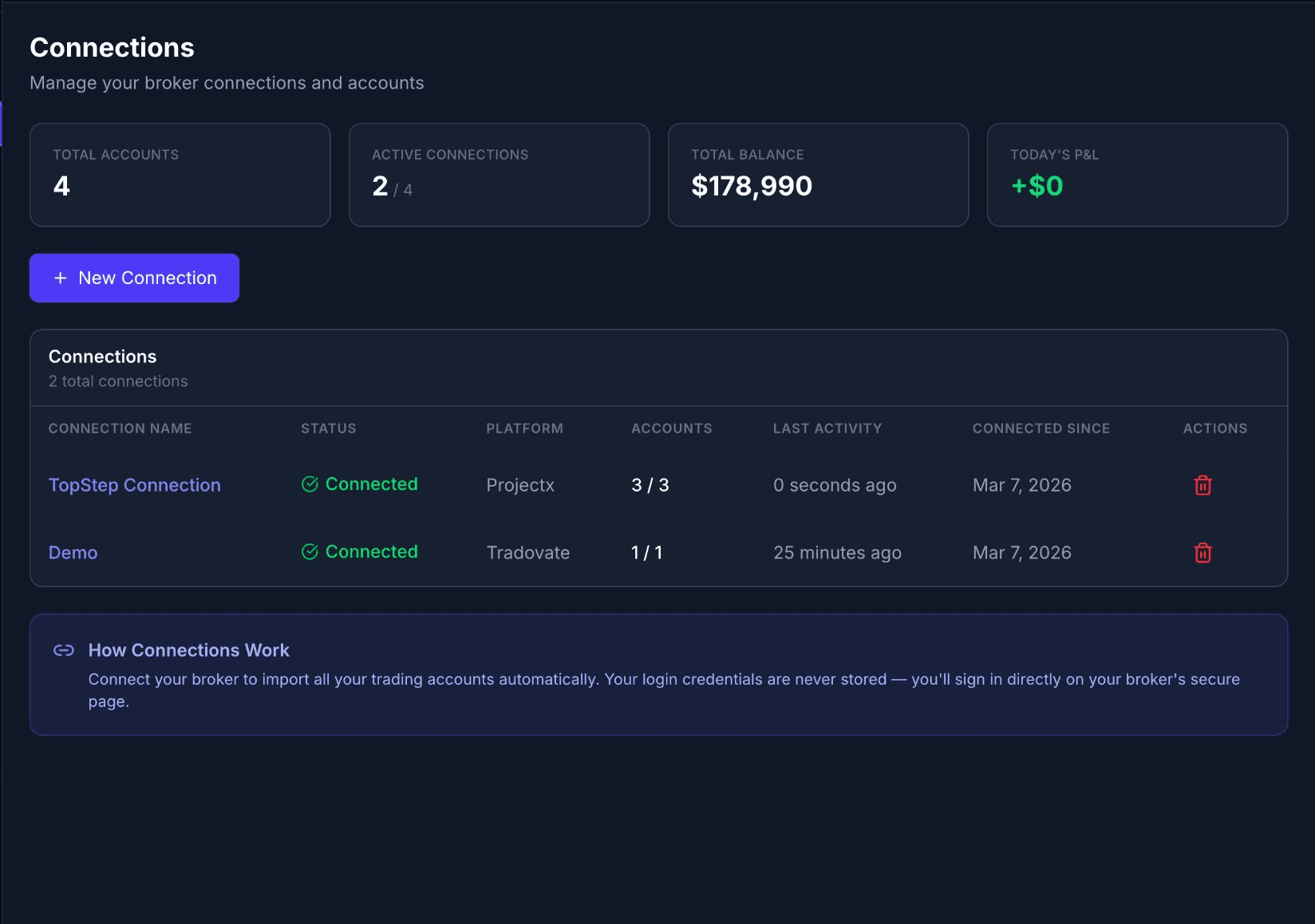
Two connections active simultaneously — ProjectX (TopstepX) and Tradovate (Demo)
ℹ️ Note
Fixing a disconnected Tradovate connection Tradovate
Tradovate OAuth tokens expire periodically. When this happens, the connection status changes to Disconnected and the row is highlighted in red on the Connections page.
✗ What you'll see
The connection row turns red, the status shows a red ✗ Disconnected, and a Reconnect button appears in the Actions column. Trades will stop copying until reconnected.
Go to the Connections page.
Find the disconnected connection — it will have a red row and show Disconnected status.
Click the Reconnect button in the Actions column.
You'll be redirected to Tradovate's login page — sign in again to re-authorize.
You'll be redirected back automatically. The connection will return to Connected status.
⚠️ Important
Fixing a disconnected ProjectX connection ProjectX
SyncMyTrade stores your ProjectX API key and uses it automatically to refresh access tokens in the background — so ProjectX connections rarely disconnect. The only time a ProjectX connection goes offline is when the API key itself expires or is revoked by your prop firm.
ℹ️ Note
Log into your prop firm's platform and go to your API or integrations settings.
Generate a new API key (or find the current valid one if it was rotated automatically).
Go to the Connections page in SyncMyTrade.
Delete the disconnected connection using the trash icon.
Click + New Connection and re-add the connection using your new API key.
Re-assign the accounts to your copy groups on the Groups page.
⚠️ Important
Deleting a connection
To delete a connection, click the trash icon in the Actions column on the Connections page.
⚠️ Important
Was this article helpful?